

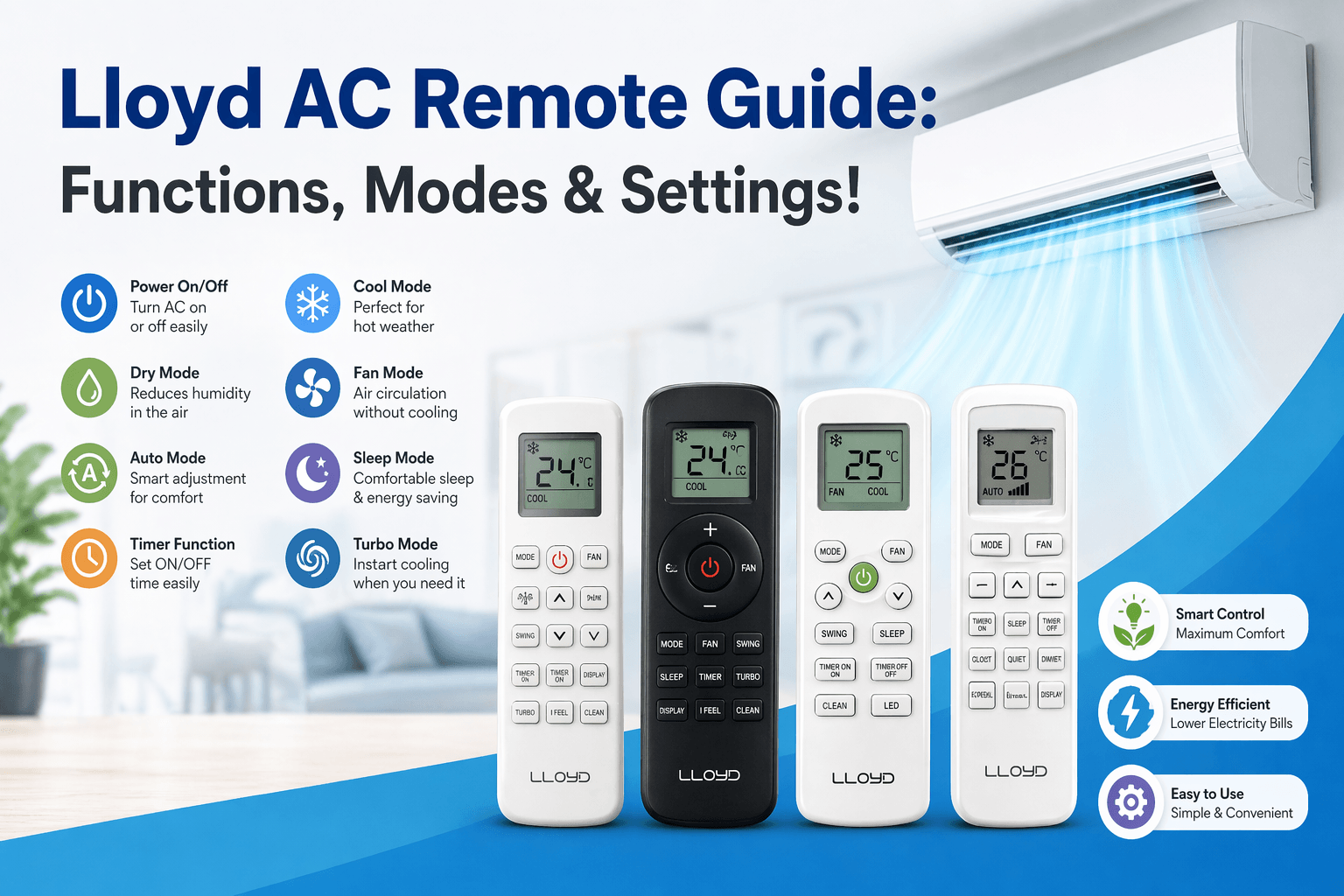
Lloyd AC Remote Guide: Functions, Modes & Settings!
Air conditioners are no longer just about cooling—they are about comfort, efficiency, and smart control. If you own a Lloyd AC, understanding how to use the remote properly can significantly improve your cooling experience. The Remote For LLOYD AC is packed with features that allow you to control temperature, airflow, modes, and energy usage with ease.
In this complete guide, you’ll learn about Lloyd AC remote functions, symbols, modes, sleep mode, timer settings, and how to use them effectively.
What is Remote For LLOYD AC?
The Remote For LLOYD AC is a controller designed to operate your air conditioner conveniently. It allows you to:
- Turn the AC ON or OFF
- Adjust temperature
- Change cooling modes
- Control fan speed
- Use smart features like sleep mode and timer
Apart from the physical remote, you can also use mobile apps such as LLOYD Smart AC Remote Control and Remote For LLOYD AC to operate your AC digitally.
Lloyd AC Remote Control Functions
Understanding each button on your remote is essential for efficient usage.
1. Power Button (ON/OFF)
This button turns the AC on or off instantly.
? To turn off your Lloyd AC, simply press the Power button once.
2. Mode Button
The Mode button helps you switch between different operating modes:
- Cool Mode
- Dry Mode
- Fan Mode
- Auto Mode
Each mode is designed for different weather conditions.
3. Temperature Control (+ / -)
Use these buttons to increase or decrease the temperature.
-) Ideal temperature: 24°C to 26°C for comfort and energy savings.
4. Fan Speed Button
This lets you control airflow speed:
- Low
- Medium
- High
- Auto
Higher speed cools faster but consumes more electricity.
Read : Most Popular AC Remotes in India You Can Buy from Upixinc Today
5. Swing Button
Controls the direction of airflow by adjusting AC flaps.
- Vertical swing
- Horizontal swing (in some models)
6. Timer Button
Allows you to schedule when the AC turns ON or OFF automatically.
7. Sleep Mode Button
Optimizes temperature while you sleep for better comfort and lower power usage.
Lloyd AC Modes Explained
Cool Mode
This is the default mode used for cooling the room. It works best during hot weather.
Dry Mode
Dry mode removes humidity from the air. It is ideal during monsoon or humid conditions and consumes less power.
Fan Mode
In this mode, the AC works like a fan without cooling. It helps circulate air.
Auto Mode
Auto mode automatically selects the best settings based on room temperature.
Lloyd AC Remote Symbols Meaning
Your remote uses symbols to represent functions. Here’s what they mean:
- Snowflake ?? ? Cool Mode
- Water Drop ? ? Dry Mode
- Fan ?? ? Fan Mode
- Circular Arrow ? ? Auto Mode
- Moon ? ? Sleep Mode
- Clock ? ? Timer
- Lightning ? ? Turbo Mode
Understanding these symbols makes it easier to operate your AC quickly.
Lloyd AC Remote Mode Function
Each mode has a specific purpose:
- Cool Mode ? Lowers room temperature
- Dry Mode ? Removes moisture from air
- Fan Mode ? Circulates air only
- Auto Mode ? Adjusts settings automatically
Using the correct mode improves efficiency and comfort.
Sleep Mode in Lloyd AC Remote
Sleep mode is one of the most useful features.
How it works:
- Gradually adjusts temperature during the night
- Prevents overcooling
- Saves electricity
Benefits:
- Comfortable sleep
- Reduced power consumption
- Stable temperature throughout the night
How to Set Timer in Lloyd AC
Setting a timer is simple and helps save energy.
Steps:
- Press the Timer button
- Choose ON Timer or OFF Timer
- Set the desired time using + / – buttons
- Confirm the setting
Example:
You can set your AC to turn off after 2 hours while sleeping.
Lloyd AC Remote Clean Mode
Some Lloyd AC models come with a self-clean feature.
Benefits:
- Removes moisture from internal parts
- Prevents bacteria and odor
- Improves air quality
Using clean mode regularly keeps your AC in good condition.
Turbo Mode Function
Turbo mode provides instant cooling.
Features:
- Maximum fan speed
- Quick temperature reduction
- Ideal for extremely hot conditions
Best Lloyd AC Settings for Daily Use
For optimal performance and energy efficiency:
- Mode: Cool
- Temperature: 24–26°C
- Fan Speed: Auto
- Swing: ON
- Sleep Mode: ON (at night)
Common Issues & Troubleshooting
Remote Not Working
- Replace batteries
- Check sensor alignment
- Try using a mobile app
AC Not Responding
- Ensure there are no obstacles between remote and AC
- Stay within proper range
Symbols Not Displaying
- Change batteries
- Reset the remote
Tips to Use Lloyd AC Efficiently
- Keep doors and windows closed
- Use Dry mode in humid weather
- Clean filters regularly
- Avoid setting very low temperatures
- Use timer and sleep mode to save electricity
Why Understanding Lloyd AC Remote is Important
Knowing how to use your Remote For LLOYD AC helps you:
- Save electricity bills
- Improve cooling efficiency
- Extend the lifespan of your AC
- Enhance overall comfort
Conclusion
The LLOYD Smart AC Remote Control is more than just a basic controller—it’s a powerful tool that helps you manage your cooling experience efficiently. By understanding its functions, modes, and settings, you can get the best performance from your Lloyd AC.
Whether you are using a physical remote or a mobile app, mastering these features ensures smarter cooling, better comfort, and lower energy costs.

